How To Integrate WhatsApp Meta API in AIHelpTeam.com Chatbot
By : umoh 1 July 2025 2:49 pmPreviously, we learned the step-by-step guide on how to register your phone number on the Meta WhatsApp Cloud API — which is the first and essential step.
Now, let’s move to the next phase.
? Today’s Guide: How to Successfully Integrate the WhatsApp Messaging API with AIHelpTeam
Follow the specific steps below to complete your WhatsApp API setup and start sending and receiving messages seamlessly through AIHelpTeam.
To successfully integrate the WhatsApp Messaging API on AIHelpTeam, Follow the specific steps below:
- Whatsapp webhook listener
- Whatsapp webhook verify token
- Permanant Whatsapp Access Token
- Whatsapp Phone Number ID
1. Whatsapp Webhook Listener
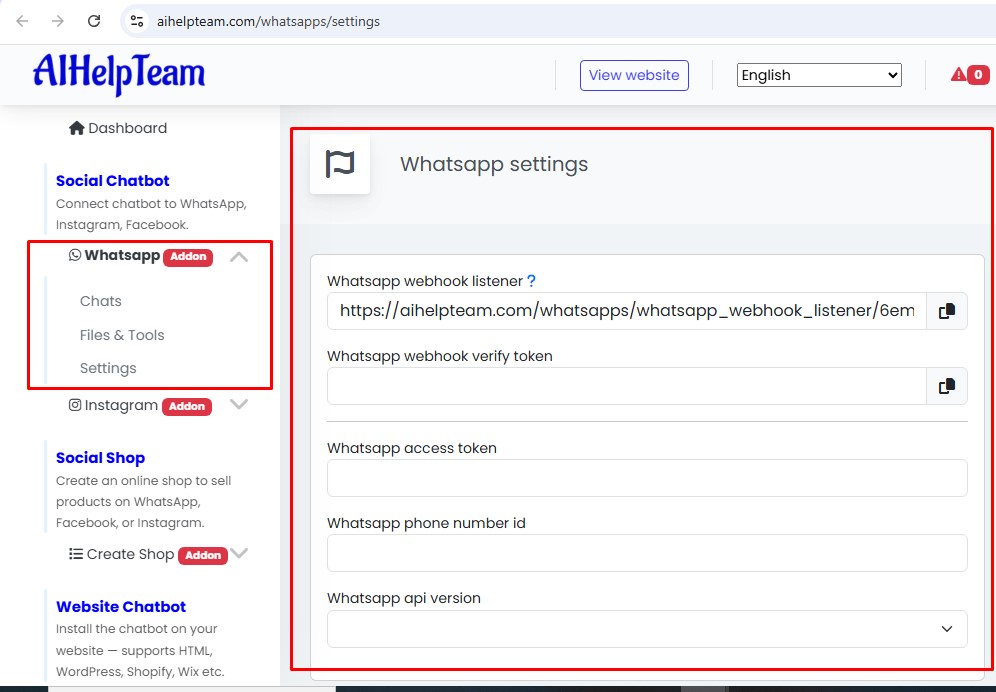
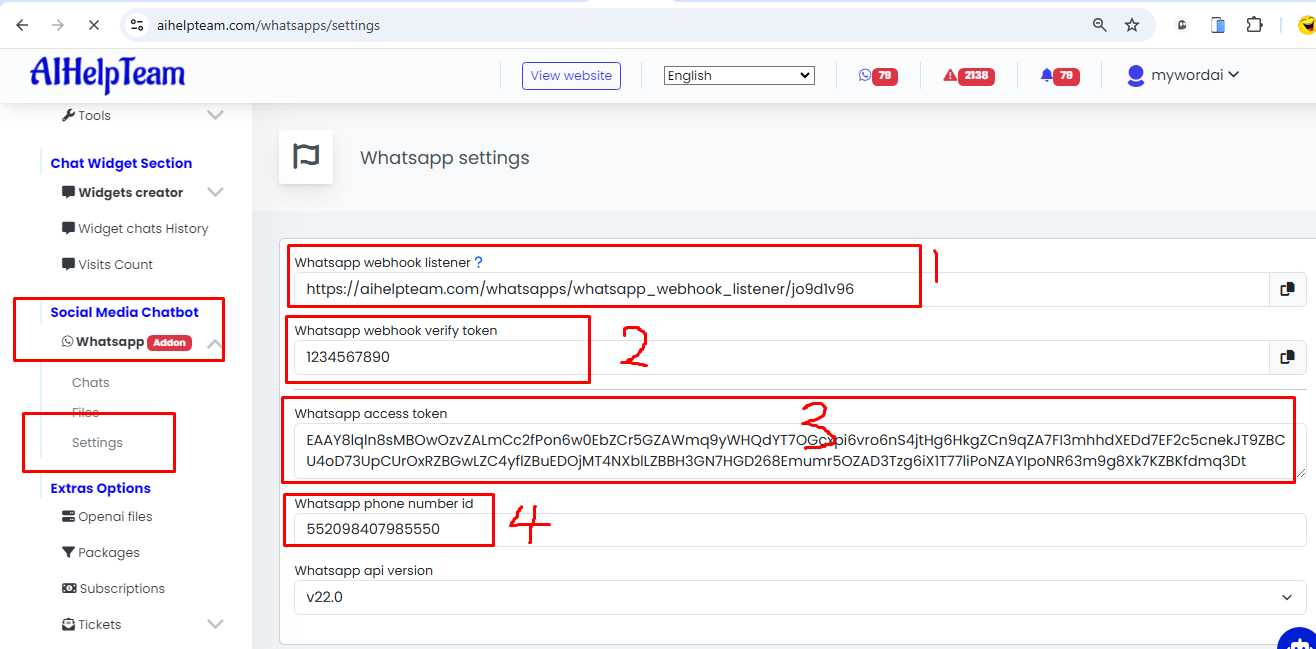
Your unique Whatsapp webhook listener ( See image tagged 1) is automatically provided for you on your AIHelpTeam whatsapp settings after subscription.
You will have to copy this code correctly into your facebook whatsapp webhook callback URL row
STEPS:
- Go to facebook.developer.com - Dashboard
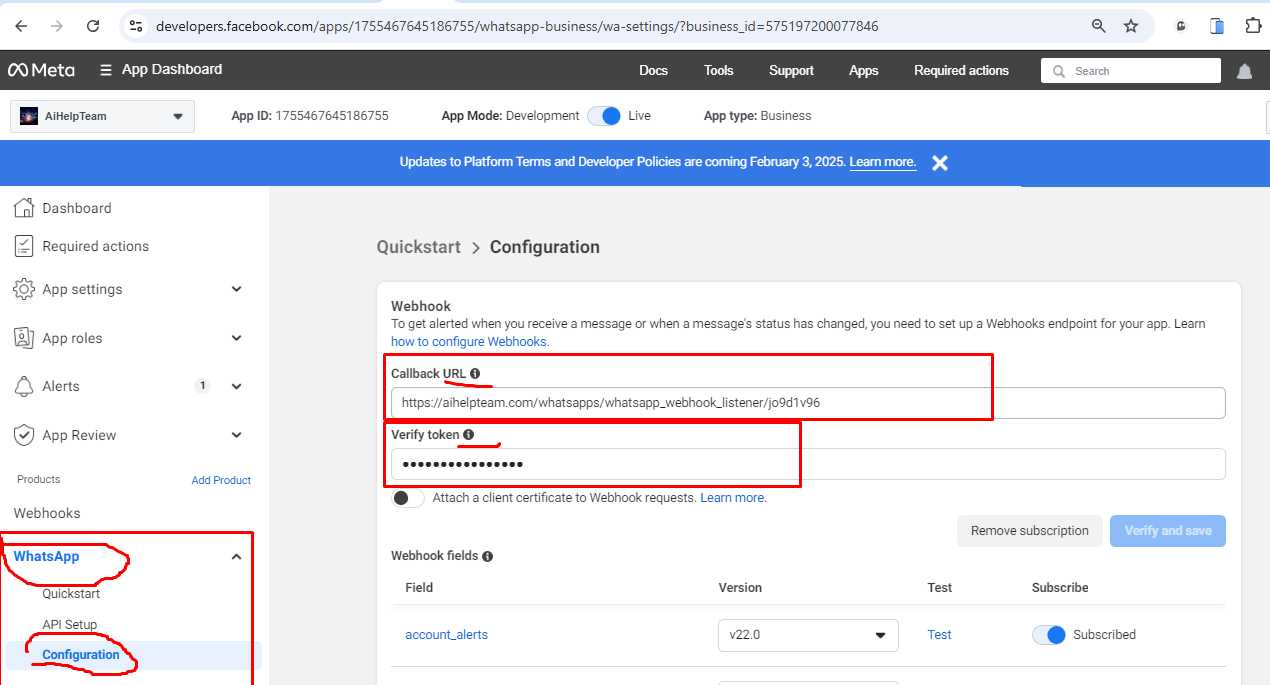
- Whatsapp - Configuration - Callback URL
- Copy your webhook listener from your AIHelpTeam account and paste on the Callback URL
2. Whatsapp Webhook Verify Token
You will need to type and save a new 10 character long Verify Token in your AIHelpTeam whatsapp settings and save it.
After which you will have to copy this Verify Token correctly into your facebook whatsapp webhook verify token row and save it
STEPS:
- Create, save and copy your unique 10 character Verify token from your AIHelpTeam
- Go to facebook.developer.com - Dashboard
- Whatsapp - Configuration - Verify Token ( Under callback URL. See Image above)
- Paste your copied Verified Token here and save
3. Permanant Whatsapp Access Token
To generate a permanent access token which you will need to input into your AIHelpTeam whatsapp settings follow the steps below:
STEPS:
- Go to Business Settings.
- Select the business account your app is associated with.
- Below Users, click System Users.
- Click Add.
- Name the system user, choose Admin as the user role, and click Create System User.
- Select the whatsapp_business_messaging permission.
- Click Generate New Token.
- Copy the permanent whatsapp access token and paste it on your AIHelpTeam.com Whatsapp Settings
4. Whatsapp Phone Number ID
Your phone ID is not your actual phone number but the ID assigned to your registered phone number on the whatsapp API. Its directly under your phone number in your facebook.developer >> Whatsapp >> API Setup page.

.png)



No Comments